> ## Documentation Index
> Fetch the complete documentation index at: https://docs.recordengine.ai/llms.txt
> Use this file to discover all available pages before exploring further.
# AI Chat & Document Q&A
> Ask questions across all your documents in plain language — no search queries, no manual lookups.
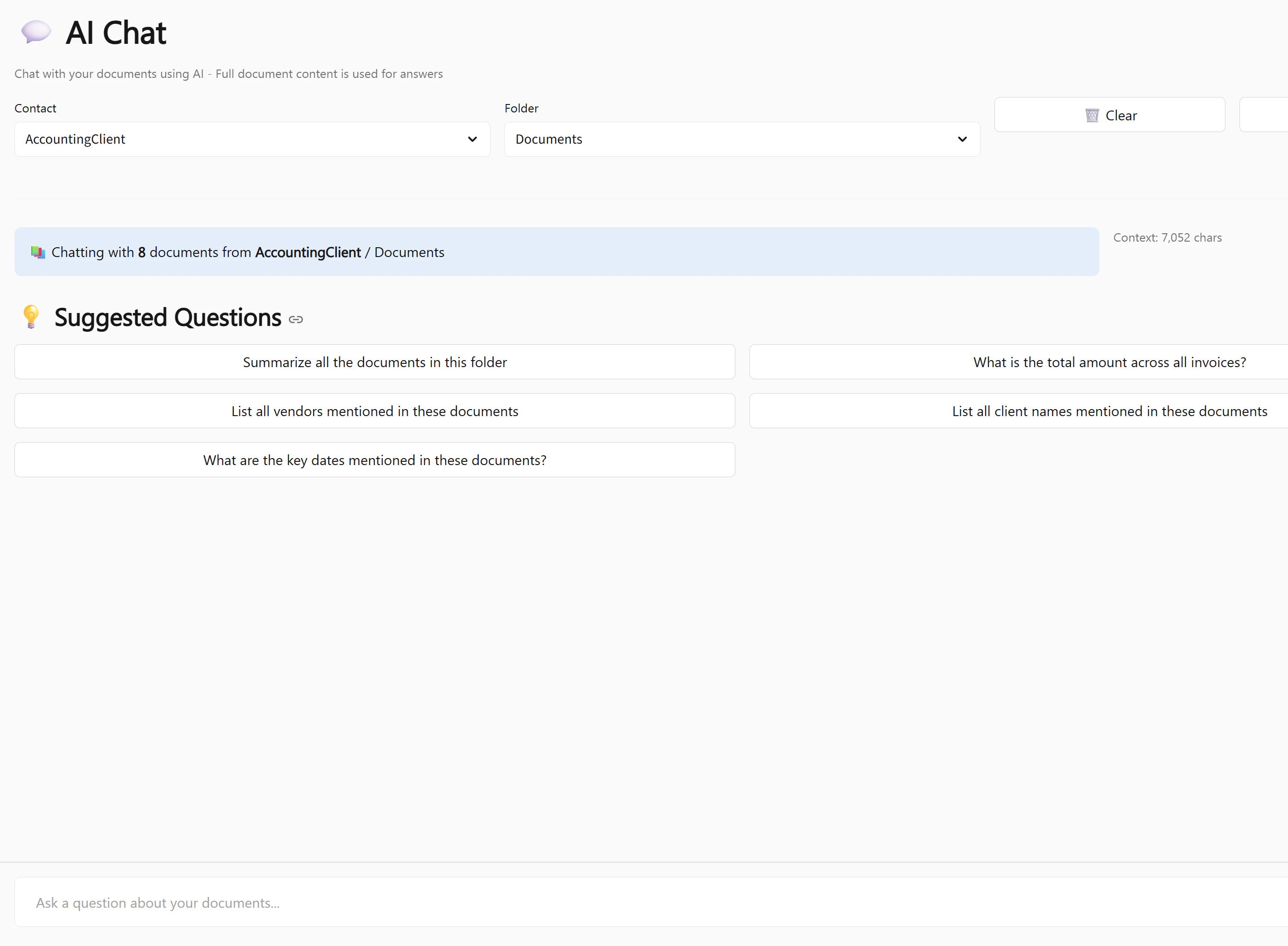
The **AI Chat** feature lets you have a conversation with your documents. Instead of opening each document individually to find a figure or a name, you ask a question in plain English (or Chinese) and the AI answers using the actual content of your processed documents.
 ***
## How It Works
The AI Chat reads the **full extracted text** of every document in the selected folder — not just the summary, but all extracted fields, line items, and notes. It then answers your question by synthesising across all of those documents simultaneously.
All AI processing happens on your own server. Your documents and questions never leave your network.
***
## Starting a Chat
1. Click **AI Chat** in the left sidebar
2. Select a **Contact** from the dropdown
3. Select a **Folder** within that contact
4. Type your question and press Enter
The AI has access to all processed documents in the selected folder. Documents that are still in **New** or **Processing** status are not yet available — wait for them to reach **Needs Review** or later before chatting.
***
## What You Can Ask
The AI Chat is designed for natural language questions. Here are some examples of what works well:
* *"What is the invoice number on the most recent Acme invoice?"*
* *"Who is the legal representative on the business license?"*
* *"What was the total amount on the November fapiao?"*
* *"What is the total of all invoices in this folder?"*
* *"How many invoices are from vendors in Beijing?"*
* *"What is the average invoice amount this quarter?"*
* *"Are there any invoices where the stated total doesn't match the sum of line items?"*
* *"Which vendor appears most frequently across all invoices?"*
* *"Do any documents have missing invoice numbers?"*
* *"What action items were assigned to John in last week's meeting?"*
* *"What decisions were made across all the Q4 meeting notes?"*
* *"Who attended the most meetings this month?"*
* *"Are there any invoices dated before the contract start date?"*
* *"Which documents have a confidence score below 70?"*
* *"Are there duplicate invoice numbers across any documents?"*
***
## Per-Contact AI Instructions
You can give the AI standing instructions for each contact — for example, telling it to always respond in a specific language, use a formal tone, or focus on particular fields.
To set instructions:
1. Go to **Contacts** and open the contact
2. Click **Edit**
3. Fill in the **AI Chat Instructions** field — for example:
* *"Always respond in formal English. Focus on financial figures."*
* *"This client's documents are in Chinese. Respond in Chinese."*
* *"Always include the invoice number and vendor name in your answers."*
4. Save
These instructions are applied automatically every time you chat within that contact's folders.
***
## Saving Chat Transcripts
After a useful conversation, you can save the entire transcript as a document in RecordEngine:
1. Click **Save Transcript** at the top of the chat
2. The transcript is saved as a new document in the current folder
3. It appears in the document list and is searchable like any other document
This is useful for compliance records, meeting follow-ups, or sharing findings with colleagues.
***
## Multi-Turn Conversations
The AI maintains context across messages within a single session. You can ask follow-up questions without repeating yourself:
```
You: What is the total of all invoices from Acme this month?
AI: The total is ¥47,320 across 4 invoices.
You: Which one has the highest amount?
AI: Invoice INV-2025-1147 for ¥18,500, dated November 15.
You: Does it have a due date?
AI: Yes — the due date is December 15, 2025.
```
Chat context resets when you start a new session or switch folders. If you need to preserve a conversation, save the transcript before navigating away.
***
## Mobile Chat App
RecordEngine includes a mobile-optimised chat interface accessible from any browser on your local network — no app installation required.
Open a browser on your phone and navigate to:
```
http://YOUR-SERVER-ADDRESS/chat/
```
The mobile app supports the same full chat functionality as the desktop interface, optimised for smaller screens.
For clients or colleagues who only need to ask questions about their documents — without accessing the full RecordEngine interface — the mobile chat app is a clean, focused entry point.
***
## Chat API
The AI Chat is also available via the REST API, so you can embed document Q\&A in your own portal or application:
```bash theme={null}
curl -X POST https://YOUR-INSTANCE/api/chat \
-H "Authorization: Bearer YOUR_TOKEN" \
-H "Content-Type: application/json" \
-d '{
"question": "What is the total of all invoices this month?",
"contact_id": 5,
"folder_id": 12
}'
```
See [Chat API](/api-reference/chat-api) for the full request and response schema.
***
## How It Works
The AI Chat reads the **full extracted text** of every document in the selected folder — not just the summary, but all extracted fields, line items, and notes. It then answers your question by synthesising across all of those documents simultaneously.
All AI processing happens on your own server. Your documents and questions never leave your network.
***
## Starting a Chat
1. Click **AI Chat** in the left sidebar
2. Select a **Contact** from the dropdown
3. Select a **Folder** within that contact
4. Type your question and press Enter
The AI has access to all processed documents in the selected folder. Documents that are still in **New** or **Processing** status are not yet available — wait for them to reach **Needs Review** or later before chatting.
***
## What You Can Ask
The AI Chat is designed for natural language questions. Here are some examples of what works well:
* *"What is the invoice number on the most recent Acme invoice?"*
* *"Who is the legal representative on the business license?"*
* *"What was the total amount on the November fapiao?"*
* *"What is the total of all invoices in this folder?"*
* *"How many invoices are from vendors in Beijing?"*
* *"What is the average invoice amount this quarter?"*
* *"Are there any invoices where the stated total doesn't match the sum of line items?"*
* *"Which vendor appears most frequently across all invoices?"*
* *"Do any documents have missing invoice numbers?"*
* *"What action items were assigned to John in last week's meeting?"*
* *"What decisions were made across all the Q4 meeting notes?"*
* *"Who attended the most meetings this month?"*
* *"Are there any invoices dated before the contract start date?"*
* *"Which documents have a confidence score below 70?"*
* *"Are there duplicate invoice numbers across any documents?"*
***
## Per-Contact AI Instructions
You can give the AI standing instructions for each contact — for example, telling it to always respond in a specific language, use a formal tone, or focus on particular fields.
To set instructions:
1. Go to **Contacts** and open the contact
2. Click **Edit**
3. Fill in the **AI Chat Instructions** field — for example:
* *"Always respond in formal English. Focus on financial figures."*
* *"This client's documents are in Chinese. Respond in Chinese."*
* *"Always include the invoice number and vendor name in your answers."*
4. Save
These instructions are applied automatically every time you chat within that contact's folders.
***
## Saving Chat Transcripts
After a useful conversation, you can save the entire transcript as a document in RecordEngine:
1. Click **Save Transcript** at the top of the chat
2. The transcript is saved as a new document in the current folder
3. It appears in the document list and is searchable like any other document
This is useful for compliance records, meeting follow-ups, or sharing findings with colleagues.
***
## Multi-Turn Conversations
The AI maintains context across messages within a single session. You can ask follow-up questions without repeating yourself:
```
You: What is the total of all invoices from Acme this month?
AI: The total is ¥47,320 across 4 invoices.
You: Which one has the highest amount?
AI: Invoice INV-2025-1147 for ¥18,500, dated November 15.
You: Does it have a due date?
AI: Yes — the due date is December 15, 2025.
```
Chat context resets when you start a new session or switch folders. If you need to preserve a conversation, save the transcript before navigating away.
***
## Mobile Chat App
RecordEngine includes a mobile-optimised chat interface accessible from any browser on your local network — no app installation required.
Open a browser on your phone and navigate to:
```
http://YOUR-SERVER-ADDRESS/chat/
```
The mobile app supports the same full chat functionality as the desktop interface, optimised for smaller screens.
For clients or colleagues who only need to ask questions about their documents — without accessing the full RecordEngine interface — the mobile chat app is a clean, focused entry point.
***
## Chat API
The AI Chat is also available via the REST API, so you can embed document Q\&A in your own portal or application:
```bash theme={null}
curl -X POST https://YOUR-INSTANCE/api/chat \
-H "Authorization: Bearer YOUR_TOKEN" \
-H "Content-Type: application/json" \
-d '{
"question": "What is the total of all invoices this month?",
"contact_id": 5,
"folder_id": 12
}'
```
See [Chat API](/api-reference/chat-api) for the full request and response schema.