> ## Documentation Index
> Fetch the complete documentation index at: https://docs.recordengine.ai/llms.txt
> Use this file to discover all available pages before exploring further.
# Rules Engine
> Automate your document workflow — automatically flag, move, notify, and export based on any combination of conditions.
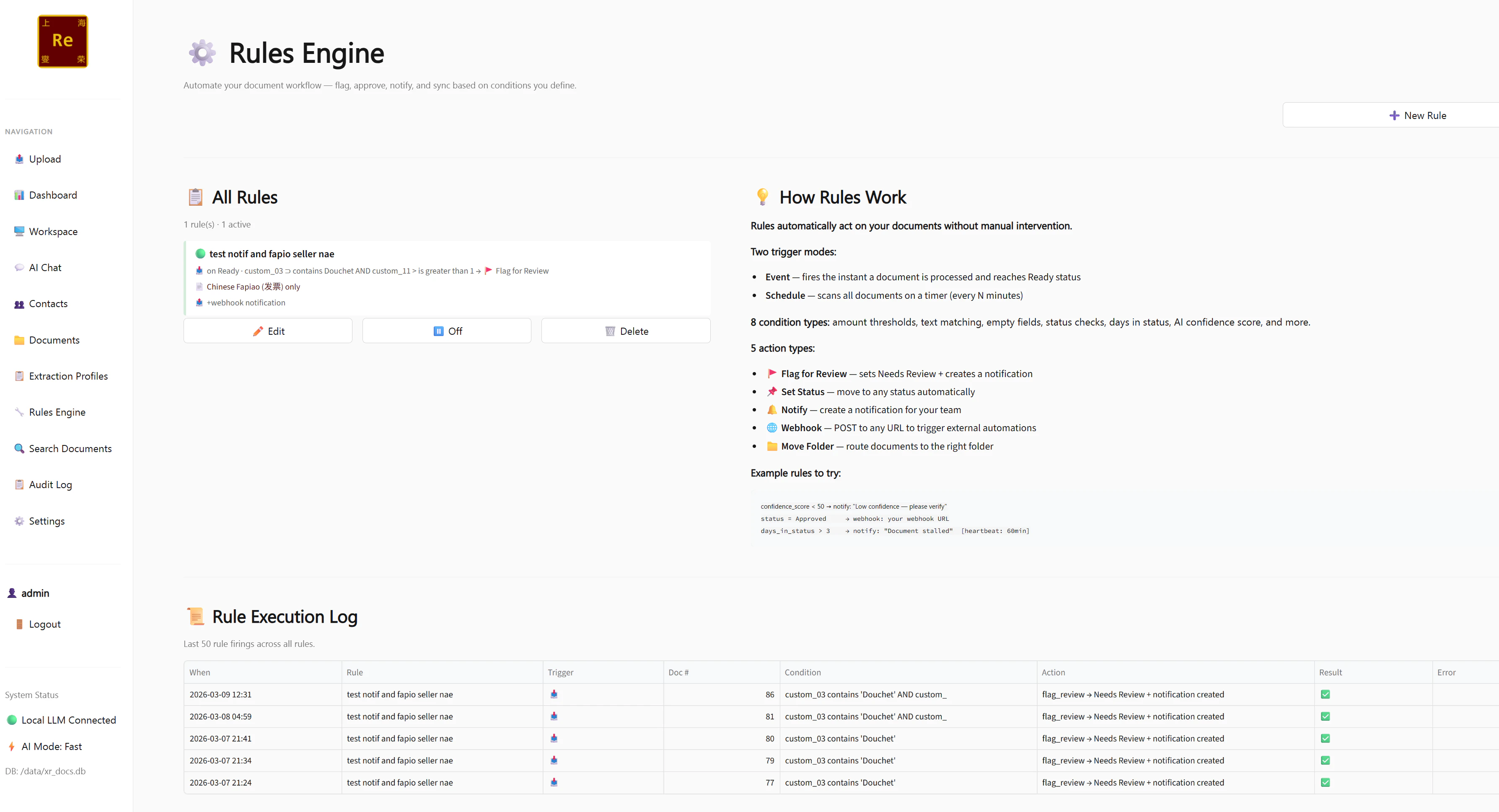
The **Rules Engine** lets you define automation rules that fire automatically after every document is processed by the AI. Instead of manually reviewing every document and deciding what to do with it, you set the logic once and RecordEngine handles it for you.
 ***
## When Rules Fire
Rules fire **automatically** after the AI finishes processing a document — after extraction and confidence scoring are complete. You don't need to trigger them manually.
Rules can also run in **Heartbeat mode** — a periodic scan that re-evaluates all documents in the system on a schedule, catching anything that was missed or that changed state since the last run.
***
## Creating a Rule
Click **Rules Engine** (🔧) in the left sidebar, then click **+ New Rule**.
Give it a descriptive name — for example, *"Flag low confidence invoices"* or *"Auto-approve high confidence fapiao"*. You'll see this name in the audit log every time the rule fires.
Define what must be true for the rule to fire. You can add up to **5 conditions** — all conditions must be true simultaneously (AND logic).
See [Condition Fields](#condition-fields) and [Operators](#operators) below.
Define what happens when the conditions are met.
See [Action Types](#action-types) below.
If you want the rule to only apply to documents processed with a specific extraction profile, set the **Profile Scope**. Custom fields from that profile will then become available as condition options.
Save the rule. It is active immediately — the next document that matches will trigger it.
***
## When Rules Fire
Rules fire **automatically** after the AI finishes processing a document — after extraction and confidence scoring are complete. You don't need to trigger them manually.
Rules can also run in **Heartbeat mode** — a periodic scan that re-evaluates all documents in the system on a schedule, catching anything that was missed or that changed state since the last run.
***
## Creating a Rule
Click **Rules Engine** (🔧) in the left sidebar, then click **+ New Rule**.
Give it a descriptive name — for example, *"Flag low confidence invoices"* or *"Auto-approve high confidence fapiao"*. You'll see this name in the audit log every time the rule fires.
Define what must be true for the rule to fire. You can add up to **5 conditions** — all conditions must be true simultaneously (AND logic).
See [Condition Fields](#condition-fields) and [Operators](#operators) below.
Define what happens when the conditions are met.
See [Action Types](#action-types) below.
If you want the rule to only apply to documents processed with a specific extraction profile, set the **Profile Scope**. Custom fields from that profile will then become available as condition options.
Save the rule. It is active immediately — the next document that matches will trigger it.
 ***
## Condition Fields
These are the fields you can test in a condition:
| Field | Description | Example values |
| ------------------ | --------------------------------------------------------- | -------------------------------- |
| `confidence_score` | The AI extraction confidence (0–100) | `85`, `60` |
| `status` | Current document status | `Needs Review`, `Approved` |
| `doc_type` | The type of document detected by the AI | `Invoice`, `Receipt`, `Contract` |
| `doc_date` | The date extracted from the document | `2025-11-01` |
| `folder_id` | The folder the document is in | Select from dropdown |
| `contact_id` | The contact the document belongs to | Select from dropdown |
| `days_in_status` | How many days the document has been in its current status | `3`, `7` |
| **Custom fields** | Any field from the scoped extraction profile | `vendor_name`, `total_amount` |
Custom profile fields appear automatically as condition options once you set a Profile Scope on the rule. For example, if you scope to the Standard Invoice profile, `vendor`, `invoice_number`, `total_amount`, and all other profile fields become available as condition fields.
***
## Operators
Each condition uses one of these operators:
| Operator | Meaning | Example |
| ------------------ | -------------------------------- | ------------------------------------- |
| `>` (greater than) | Numeric comparison | `confidence_score > 85` |
| `<` (less than) | Numeric comparison | `confidence_score < 60` |
| `=` (equals) | Exact match | `status = Needs Review` |
| `≠` (not equals) | Does not match | `status ≠ Approved` |
| `contains` | Field value includes a substring | `vendor contains "Acme"` |
| `does not contain` | Field value excludes a substring | `doc_type does not contain "Receipt"` |
| `is missing` | Field was not extracted | `invoice_number is missing` |
| `is present` | Field was extracted (any value) | `vendor is present` |
***
## Multi-Condition Rules (AND Logic)
You can add up to **5 conditions** to a single rule. All conditions must be true at the same time for the rule to fire.
```
Condition 1: confidence_score < 70
AND
Condition 2: status = Needs Review
AND
Condition 3: contact_id = Acme Corporation
→ Action: Send Notification to reviewer
```
For OR logic — where any one of several conditions should trigger the same action — create separate rules with the same action. Each rule evaluates independently.
***
## Condition Fields
These are the fields you can test in a condition:
| Field | Description | Example values |
| ------------------ | --------------------------------------------------------- | -------------------------------- |
| `confidence_score` | The AI extraction confidence (0–100) | `85`, `60` |
| `status` | Current document status | `Needs Review`, `Approved` |
| `doc_type` | The type of document detected by the AI | `Invoice`, `Receipt`, `Contract` |
| `doc_date` | The date extracted from the document | `2025-11-01` |
| `folder_id` | The folder the document is in | Select from dropdown |
| `contact_id` | The contact the document belongs to | Select from dropdown |
| `days_in_status` | How many days the document has been in its current status | `3`, `7` |
| **Custom fields** | Any field from the scoped extraction profile | `vendor_name`, `total_amount` |
Custom profile fields appear automatically as condition options once you set a Profile Scope on the rule. For example, if you scope to the Standard Invoice profile, `vendor`, `invoice_number`, `total_amount`, and all other profile fields become available as condition fields.
***
## Operators
Each condition uses one of these operators:
| Operator | Meaning | Example |
| ------------------ | -------------------------------- | ------------------------------------- |
| `>` (greater than) | Numeric comparison | `confidence_score > 85` |
| `<` (less than) | Numeric comparison | `confidence_score < 60` |
| `=` (equals) | Exact match | `status = Needs Review` |
| `≠` (not equals) | Does not match | `status ≠ Approved` |
| `contains` | Field value includes a substring | `vendor contains "Acme"` |
| `does not contain` | Field value excludes a substring | `doc_type does not contain "Receipt"` |
| `is missing` | Field was not extracted | `invoice_number is missing` |
| `is present` | Field was extracted (any value) | `vendor is present` |
***
## Multi-Condition Rules (AND Logic)
You can add up to **5 conditions** to a single rule. All conditions must be true at the same time for the rule to fire.
```
Condition 1: confidence_score < 70
AND
Condition 2: status = Needs Review
AND
Condition 3: contact_id = Acme Corporation
→ Action: Send Notification to reviewer
```
For OR logic — where any one of several conditions should trigger the same action — create separate rules with the same action. Each rule evaluates independently.
 ***
## Action Types
When all conditions are met, the rule performs one of these actions:
Changes the document status to any of the 9 statuses. Most commonly used to:
* Move low-confidence documents to Exception
* Move high-confidence documents to Ready
* Auto-archive documents after a certain number of days
Moves the document to a specified folder under any contact. Useful for routing documents to the right place automatically — for example, moving all approved Acme invoices to a dedicated "Processed" folder.
Creates an in-app notification and optionally sends an HTTP POST to a configured notification webhook URL. The notification includes the document name, current status, confidence score, and which rule triggered it.
Sends an HTTP POST to any URL with the full document payload — same format as the main outbound webhook. Use this to trigger an external action (e.g. create a task in your project management tool, send a message to a team channel) based on specific document conditions.
Adds a visible flag to the document in the list view and optionally sends a notification. Does not change the document status — purely a visual indicator for reviewers.
***
## Rule Examples
Here are some practical rules to get you started:
**Conditions:**
* `confidence_score` `<` `60`
**Action:** Set Status = Exception
**Result:** Any document the AI isn't confident about gets flagged immediately for manual review, without a reviewer having to check every document's score.
**Conditions:**
* `confidence_score` `>` `88`
* `doc_type` `contains` `Invoice`
**Action:** Set Status = Ready
**Result:** Clean, high-confidence invoices skip the manual Needs Review step and go straight to Ready — where they can be batch-approved in seconds.
**Conditions:**
* `vendor` `contains` `Acme`
* Profile Scope: Standard Invoice
**Action:** Move to Folder = "Acme / Q4 Invoices"
**Result:** All Acme invoices are automatically filed in the right folder, regardless of who uploaded them.
**Trigger:** Heartbeat mode
**Conditions:**
* `days_in_status` `>` `5`
* `status` `=` `Needs Review`
**Action:** Send Notification: "Document has been awaiting review for over 5 days"
**Result:** Documents that fall through the cracks get escalated automatically.
**Conditions:**
* `invoice_number` `is missing`
* Profile Scope: Standard Invoice
**Action:** Set Status = Missing Info
**Result:** Any invoice that arrives without an invoice number is immediately moved to Missing Info, so someone can follow up with the supplier.
***
## Managing Rules
### Enabling and disabling rules
Every rule has a toggle on the Rules Engine page. Disable a rule without deleting it — useful for seasonal rules or rules you're testing.
### Rule execution in the Audit Log
Every time a rule fires, it is recorded in the [Audit Log](/user-guide/audit-log) with the rule name, document name, conditions that matched, and the action taken. This gives you a full trail of automated decisions.
### The 5-condition limit
A single rule supports up to 5 AND conditions. The **+ Add Condition** button disappears once 5 conditions are defined. If you need more complex logic, split it across two rules.
***
## Profile Scoping
Setting a **Profile Scope** on a rule does two things:
1. The rule only evaluates documents processed with that specific extraction profile — documents processed with other profiles are ignored
2. Custom fields from that profile become available as condition fields in the rule editor
This prevents rules from inadvertently affecting document types they weren't designed for.
***
## Action Types
When all conditions are met, the rule performs one of these actions:
Changes the document status to any of the 9 statuses. Most commonly used to:
* Move low-confidence documents to Exception
* Move high-confidence documents to Ready
* Auto-archive documents after a certain number of days
Moves the document to a specified folder under any contact. Useful for routing documents to the right place automatically — for example, moving all approved Acme invoices to a dedicated "Processed" folder.
Creates an in-app notification and optionally sends an HTTP POST to a configured notification webhook URL. The notification includes the document name, current status, confidence score, and which rule triggered it.
Sends an HTTP POST to any URL with the full document payload — same format as the main outbound webhook. Use this to trigger an external action (e.g. create a task in your project management tool, send a message to a team channel) based on specific document conditions.
Adds a visible flag to the document in the list view and optionally sends a notification. Does not change the document status — purely a visual indicator for reviewers.
***
## Rule Examples
Here are some practical rules to get you started:
**Conditions:**
* `confidence_score` `<` `60`
**Action:** Set Status = Exception
**Result:** Any document the AI isn't confident about gets flagged immediately for manual review, without a reviewer having to check every document's score.
**Conditions:**
* `confidence_score` `>` `88`
* `doc_type` `contains` `Invoice`
**Action:** Set Status = Ready
**Result:** Clean, high-confidence invoices skip the manual Needs Review step and go straight to Ready — where they can be batch-approved in seconds.
**Conditions:**
* `vendor` `contains` `Acme`
* Profile Scope: Standard Invoice
**Action:** Move to Folder = "Acme / Q4 Invoices"
**Result:** All Acme invoices are automatically filed in the right folder, regardless of who uploaded them.
**Trigger:** Heartbeat mode
**Conditions:**
* `days_in_status` `>` `5`
* `status` `=` `Needs Review`
**Action:** Send Notification: "Document has been awaiting review for over 5 days"
**Result:** Documents that fall through the cracks get escalated automatically.
**Conditions:**
* `invoice_number` `is missing`
* Profile Scope: Standard Invoice
**Action:** Set Status = Missing Info
**Result:** Any invoice that arrives without an invoice number is immediately moved to Missing Info, so someone can follow up with the supplier.
***
## Managing Rules
### Enabling and disabling rules
Every rule has a toggle on the Rules Engine page. Disable a rule without deleting it — useful for seasonal rules or rules you're testing.
### Rule execution in the Audit Log
Every time a rule fires, it is recorded in the [Audit Log](/user-guide/audit-log) with the rule name, document name, conditions that matched, and the action taken. This gives you a full trail of automated decisions.
### The 5-condition limit
A single rule supports up to 5 AND conditions. The **+ Add Condition** button disappears once 5 conditions are defined. If you need more complex logic, split it across two rules.
***
## Profile Scoping
Setting a **Profile Scope** on a rule does two things:
1. The rule only evaluates documents processed with that specific extraction profile — documents processed with other profiles are ignored
2. Custom fields from that profile become available as condition fields in the rule editor
This prevents rules from inadvertently affecting document types they weren't designed for.