

This tutorial assumes RecordEngine is already installed and running. If you haven’t installed it yet, see the Installation Guide first.
Before you start
You need:- RecordEngine running and accessible in your browser (e.g.
http://localhost:8501or your server URL) - Admin credentials (set during first-time setup)
- A sample invoice PDF — any invoice will do, even a printed and scanned one
Step 1 — Log in
Open RecordEngine in your browser and log in with your admin credentials. You’ll land on the Dashboard, which shows a summary of all documents in the system. It’s empty for now — that’s expected.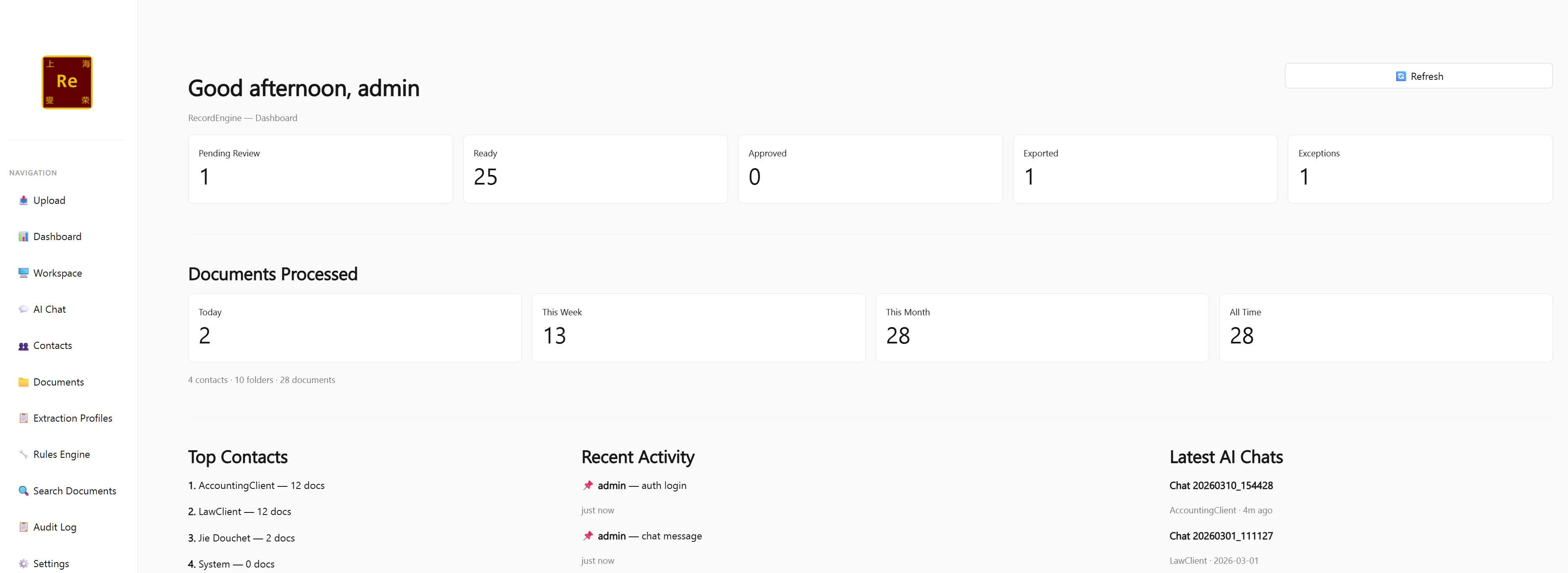
Step 2 — Create a contact
Every document in RecordEngine belongs to a contact. A contact represents a client, vendor, or any entity whose documents you’re managing.- Click Contacts in the left sidebar
- Click + New Contact
- Fill in:
- Name:
Acme Corporation(or any name) - Type:
Client - Email: optional for now
- Name:
- Click Save

Step 3 — Upload a document
- Click Upload in the left sidebar
- Drag and drop your invoice PDF onto the upload zone, or click to browse
- Set:
- Contact:
Acme Corporation - Folder:
Documents - Extraction Profile:
Standard Invoice
- Contact:
- Click Upload
 The document appears in the list with status New, then almost immediately changes to Processing.
The first document after a server restart takes longer to process (up to a few minutes) because the AI model loads into GPU memory. Subsequent documents process in seconds.
Step 4 — Watch the AI extract
Once processing completes, the status changes to Needs Review. This means the AI has finished and is waiting for a human to verify the results. Click on the document to open it. You’ll see a three-panel layout: The three panels are:
Scroll through the extracted fields on the right. For a Standard Invoice, you’ll see fields like Vendor, Invoice Number, Invoice Date, Due Date, Currency, Subtotal, Tax, and Total Amount — all filled in by the AI.
Understanding the confidence score
Below the AI summary, you’ll see a coloured badge:
A clean, well-formatted invoice should score 80 or above. A blurry scan might score 40–60.
Step 5 — Edit a field (optional)
If any field is wrong or missing, you can correct it directly:- Click Edit in the right panel
- Click on any field value and type the correct value
- Click Save
Step 6 — Approve the document
Once you’ve verified the extracted data:- In the right panel, click Mark as Ready
- The status changes to Ready
- Click Approve
- The status changes to Approved — the document is now locked against further edits

Step 7 — Export
Setting a document to Export status triggers the outbound webhook — this is how RecordEngine pushes structured data to your accounting system, CRM, or any other endpoint.- With the document open, click Export (or Webhook Export)
- Status changes to Export
- If a webhook URL is configured in Settings, RecordEngine sends a POST request with the full structured payload within seconds
What you just did
In under 10 minutes you completed the full RecordEngine document lifecycle:Next steps
Extraction Profiles
Create custom profiles for your document types — so the AI always extracts exactly the fields you need.
Rules Engine
Automate your review workflow — auto-flag low confidence documents, auto-move approvals, auto-notify reviewers.
AI Chat
Ask questions across all your documents in plain language. “What is the total of all Acme invoices this month?”
Integrations
Connect RecordEngine to Salesforce, QuickBooks, Xero, or any system that accepts a webhook.