

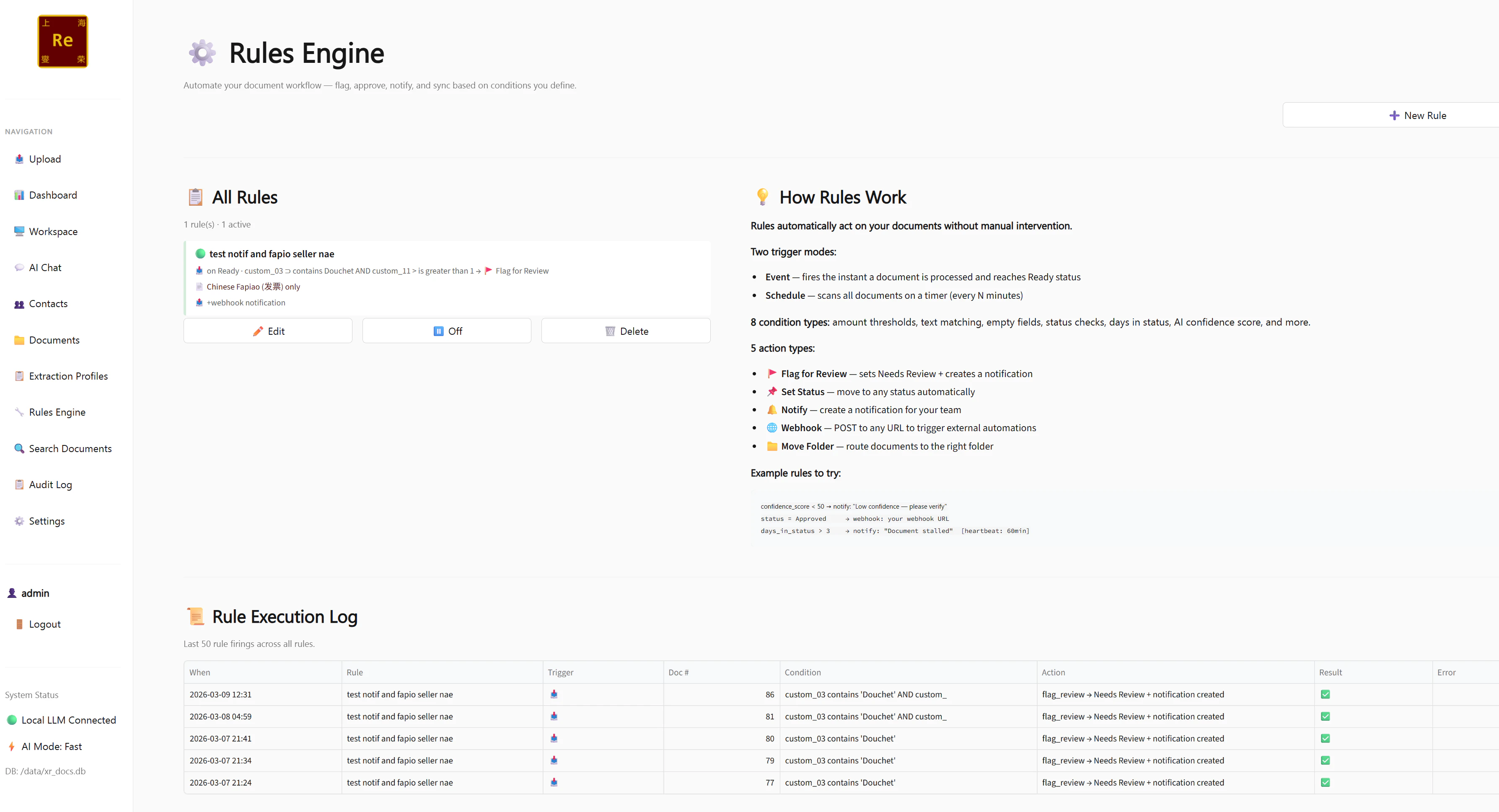
When Rules Fire
Rules fire automatically after the AI finishes processing a document — after extraction and confidence scoring are complete. You don’t need to trigger them manually. Rules can also run in Heartbeat mode — a periodic scan that re-evaluates all documents in the system on a schedule, catching anything that was missed or that changed state since the last run.Creating a Rule
1
Open the Rules Engine
Click Rules Engine (🔧) in the left sidebar, then click + New Rule.
2
Name the rule
Give it a descriptive name — for example, “Flag low confidence invoices” or “Auto-approve high confidence fapiao”. You’ll see this name in the audit log every time the rule fires.
3
Set conditions
Define what must be true for the rule to fire. You can add up to 5 conditions — all conditions must be true simultaneously (AND logic).See Condition Fields and Operators below.
4
Choose an action
Define what happens when the conditions are met.See Action Types below.
5
Optionally scope to a profile
If you want the rule to only apply to documents processed with a specific extraction profile, set the Profile Scope. Custom fields from that profile will then become available as condition options.
6
Save and activate
Save the rule. It is active immediately — the next document that matches will trigger it.

Condition Fields
These are the fields you can test in a condition:Custom profile fields appear automatically as condition options once you set a Profile Scope on the rule. For example, if you scope to the Standard Invoice profile,
vendor, invoice_number, total_amount, and all other profile fields become available as condition fields.Operators
Each condition uses one of these operators:Multi-Condition Rules (AND Logic)
You can add up to 5 conditions to a single rule. All conditions must be true at the same time for the rule to fire.
Action Types
When all conditions are met, the rule performs one of these actions:Set Status
Set Status
Changes the document status to any of the 9 statuses. Most commonly used to:
- Move low-confidence documents to Exception
- Move high-confidence documents to Ready
- Auto-archive documents after a certain number of days
Move to Folder
Move to Folder
Moves the document to a specified folder under any contact. Useful for routing documents to the right place automatically — for example, moving all approved Acme invoices to a dedicated “Processed” folder.
Send Notification
Send Notification
Creates an in-app notification and optionally sends an HTTP POST to a configured notification webhook URL. The notification includes the document name, current status, confidence score, and which rule triggered it.
Webhook POST
Webhook POST
Sends an HTTP POST to any URL with the full document payload — same format as the main outbound webhook. Use this to trigger an external action (e.g. create a task in your project management tool, send a message to a team channel) based on specific document conditions.
Flag for Review
Flag for Review
Adds a visible flag to the document in the list view and optionally sends a notification. Does not change the document status — purely a visual indicator for reviewers.
Rule Examples
Here are some practical rules to get you started:Auto-flag low confidence documents
Auto-flag low confidence documents
Conditions:
confidence_score<60
Fast-track high confidence invoices
Fast-track high confidence invoices
Conditions:
confidence_score>88doc_typecontainsInvoice
Route by vendor
Route by vendor
Conditions:
vendorcontainsAcme- Profile Scope: Standard Invoice
Escalate stale documents
Escalate stale documents
Trigger: Heartbeat modeConditions:
days_in_status>5status=Needs Review
Notify on missing invoice number
Notify on missing invoice number
Conditions:
invoice_numberis missing- Profile Scope: Standard Invoice
Managing Rules
Enabling and disabling rules
Every rule has a toggle on the Rules Engine page. Disable a rule without deleting it — useful for seasonal rules or rules you’re testing.Rule execution in the Audit Log
Every time a rule fires, it is recorded in the Audit Log with the rule name, document name, conditions that matched, and the action taken. This gives you a full trail of automated decisions.The 5-condition limit
A single rule supports up to 5 AND conditions. The + Add Condition button disappears once 5 conditions are defined. If you need more complex logic, split it across two rules.Profile Scoping
Setting a Profile Scope on a rule does two things:- The rule only evaluates documents processed with that specific extraction profile — documents processed with other profiles are ignored
- Custom fields from that profile become available as condition fields in the rule editor