

How It Works
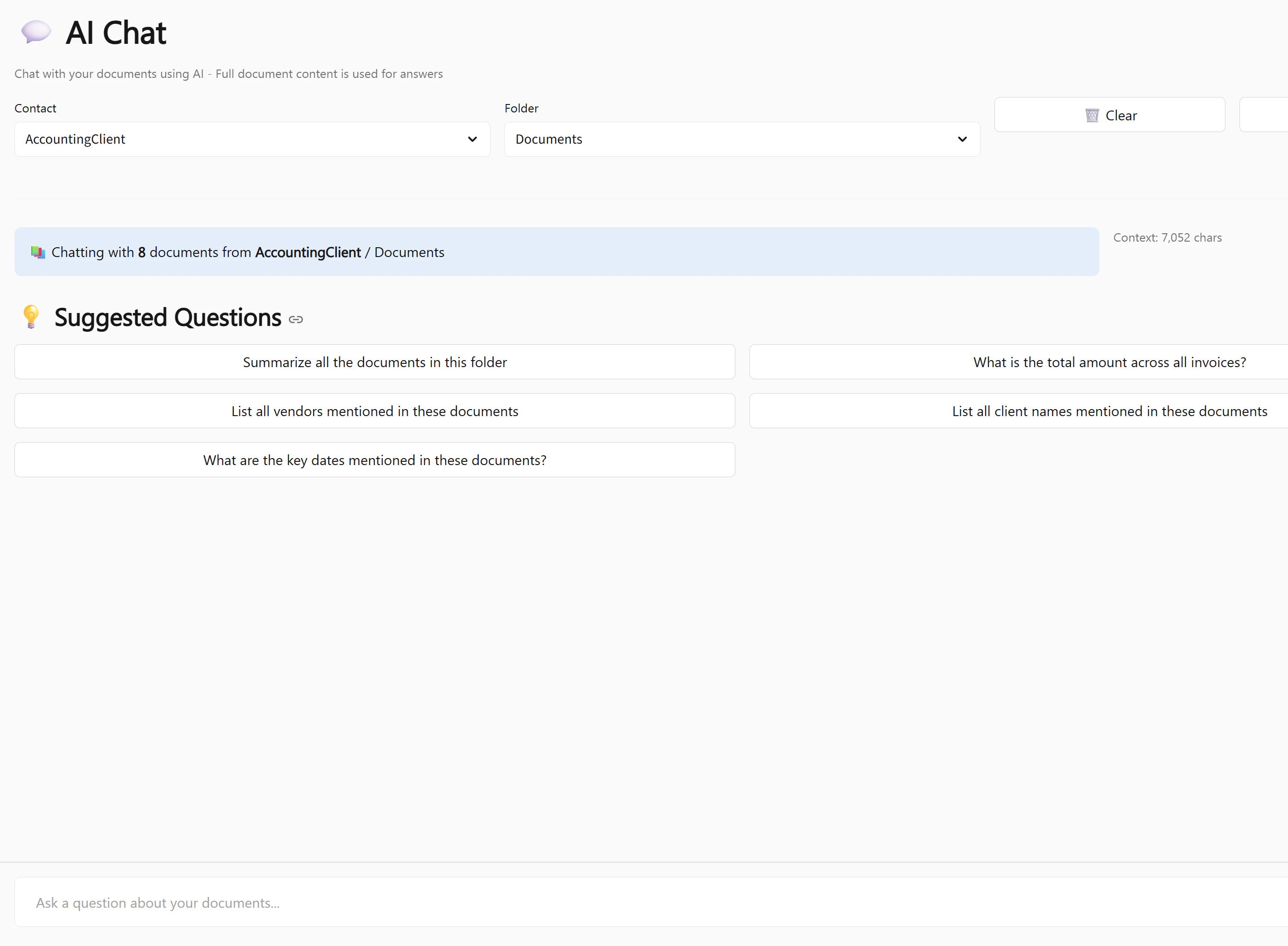
The AI Chat reads the full extracted text of every document in the selected folder — not just the summary, but all extracted fields, line items, and notes. It then answers your question by synthesising across all of those documents simultaneously.All AI processing happens on your own server. Your documents and questions never leave your network.
Starting a Chat
- Click AI Chat in the left sidebar
- Select a Contact from the dropdown
- Select a Folder within that contact
- Type your question and press Enter
What You Can Ask
The AI Chat is designed for natural language questions. Here are some examples of what works well:Lookup questions
Lookup questions
- “What is the invoice number on the most recent Acme invoice?”
- “Who is the legal representative on the business license?”
- “What was the total amount on the November fapiao?”
Aggregation questions
Aggregation questions
- “What is the total of all invoices in this folder?”
- “How many invoices are from vendors in Beijing?”
- “What is the average invoice amount this quarter?”
Cross-document questions
Cross-document questions
- “Are there any invoices where the stated total doesn’t match the sum of line items?”
- “Which vendor appears most frequently across all invoices?”
- “Do any documents have missing invoice numbers?”
Meeting and notes questions
Meeting and notes questions
- “What action items were assigned to John in last week’s meeting?”
- “What decisions were made across all the Q4 meeting notes?”
- “Who attended the most meetings this month?”
Compliance and verification questions
Compliance and verification questions
- “Are there any invoices dated before the contract start date?”
- “Which documents have a confidence score below 70?”
- “Are there duplicate invoice numbers across any documents?”
Per-Contact AI Instructions
You can give the AI standing instructions for each contact — for example, telling it to always respond in a specific language, use a formal tone, or focus on particular fields. To set instructions:- Go to Contacts and open the contact
- Click Edit
- Fill in the AI Chat Instructions field — for example:
- “Always respond in formal English. Focus on financial figures.”
- “This client’s documents are in Chinese. Respond in Chinese.”
- “Always include the invoice number and vendor name in your answers.”
- Save
Saving Chat Transcripts
After a useful conversation, you can save the entire transcript as a document in RecordEngine:- Click Save Transcript at the top of the chat
- The transcript is saved as a new document in the current folder
- It appears in the document list and is searchable like any other document