

Built-In Profiles
RecordEngine ships with 7 built-in profiles that cover the most common document types. They are ready to use immediately — no configuration needed.Default
A general-purpose profile for any document type. Extracts common fields like title, date, parties, and key amounts. Use this when you haven’t yet created a custom profile for a document type.
Standard Invoice
Designed for English-language invoices. Extracts: Vendor, Invoice Number, Invoice Date, Due Date, PO Number, Currency, Subtotal, Tax, Total Amount, Payment Terms, and line items.
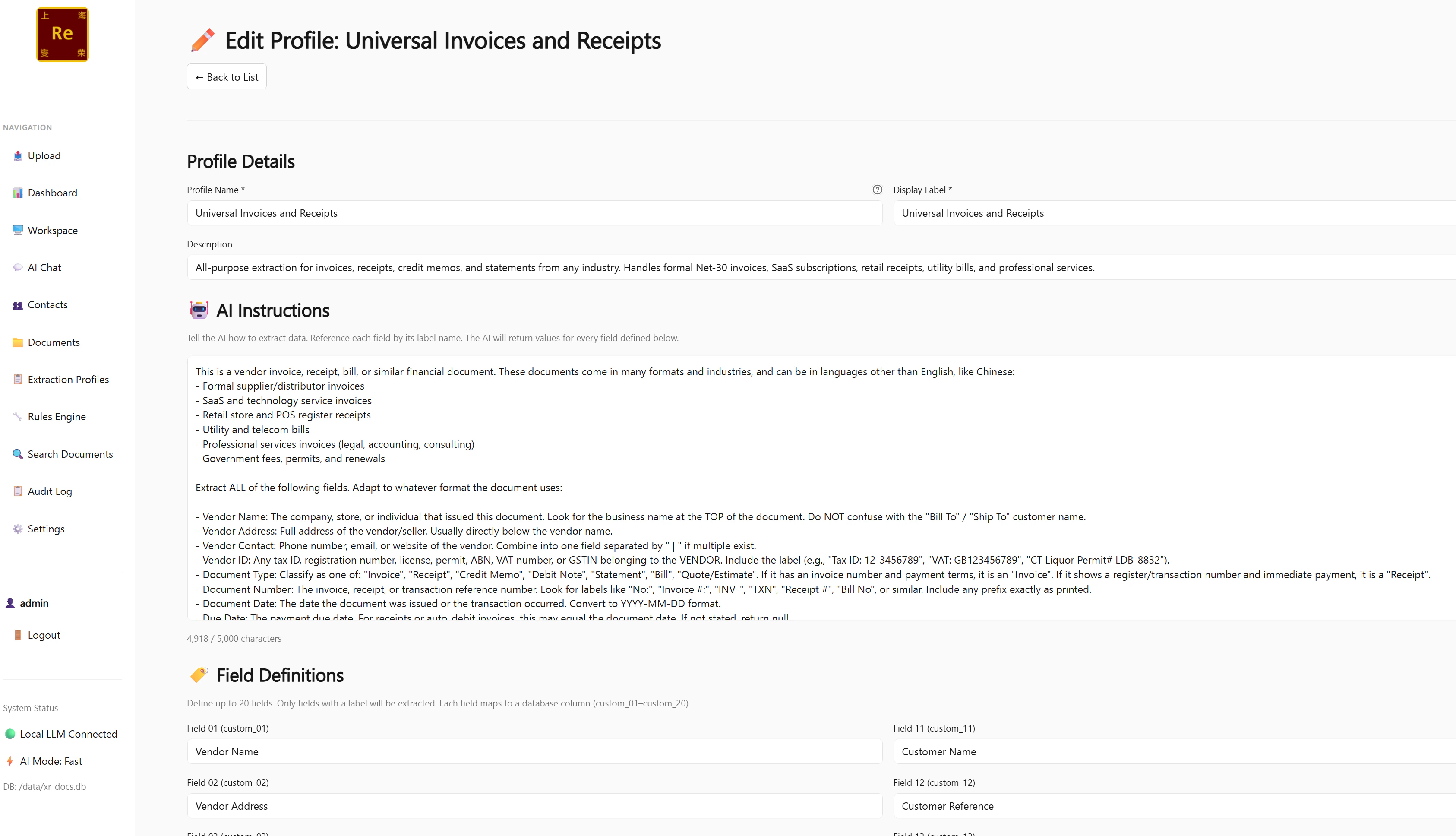
Universal Invoices & Receipts
A broader invoice profile that handles a wider range of formats including receipts, credit notes, and informal invoices. More tolerant of missing fields.
Meeting Notes
For Word documents, text files, or audio transcriptions of meetings. Extracts: Meeting Date, Attendees, Agenda, Decisions Made, Action Items, and Follow-Up Date.
Chinese Fapiao 发票
Built specifically for Chinese tax invoices. Extracts: Seller Name, Seller Tax Number, Buyer Name, Buyer Tax Number, Fapiao Number, Fapiao Code, Issue Date, Amount Before Tax, Tax Rate, Tax Amount, Total Amount. Handles red stamps and traditional fapiao layouts.
Chinese Business License 营业执照
For Chinese business registration certificates. Extracts: Company Name (Chinese and English), Unified Social Credit Code, Legal Representative, Registered Capital, Business Scope, Registration Date, Registered Address.
Extraction Profile Drafter
A meta-profile — upload a sample document with this profile and the AI will suggest a custom extraction profile tailored to that document type. Use it as a starting point when creating custom profiles.
Creating a Custom Profile
When the built-in profiles don’t match your document type, create a custom profile.1
Open Extraction Profiles
Click Extraction Profiles in the left sidebar, then click + New Profile.
2
Name your profile
Give it a clear name that reflects the document type — for example, “Customs Declaration”, “Employee Expense Report”, or “Purchase Order”.
3
Add fields
Click + Add Field for each piece of information you want to extract.For each field you set:
- Label — the human-readable name shown in the UI, CSV exports, and webhook payloads (e.g. “Vendor Name”)
- Key — the machine-readable identifier used in API responses (auto-generated from the label, e.g.
vendor_name) - Description — optional hint to the AI about what this field contains (improves accuracy on ambiguous fields)
4
Save the profile
Click Save. The profile is immediately available for selection when uploading documents.

Each profile supports up to 20 custom fields. The AI can also detect line items (individual rows in a table) regardless of profile — line item extraction is always on.
Field Labels Flow Everywhere
Whatever labels you set in a profile flow through the entire system consistently:
This means if you rename a field from
field_01 to Vendor Name, the change propagates everywhere instantly.
Using the Profile Drafter
Not sure which fields to define? Use the Extraction Profile Drafter to generate a starting point.- Upload a representative sample document using the Extraction Profile Drafter profile
- The AI analyses the document and returns a suggested profile structure — a list of fields it detected, with suggested labels and descriptions
- Go to Extraction Profiles → New Profile and use the suggestions as your starting field list
- Adjust as needed and save
Setting a Default Profile Per Contact
You can assign a default extraction profile to any contact so that documents uploaded to that contact automatically use the right profile — without having to select it manually on every upload.- Open the contact
- Click Edit
- Set Default Extraction Profile to the appropriate profile
- Save
Assigning a Profile on Upload
Even if a contact has a default profile, you can override it on a per-document basis at upload time:- On the Upload page, use the Extraction Profile dropdown
- Select any profile from the list
- The selected profile is used for this document only — the contact default is unchanged
Profile Scoping in the Rules Engine
Extraction profiles integrate with the Rules Engine — you can scope a rule to only fire on documents processed with a specific profile. For example:“If profile = Chinese Fapiao AND confidence_score < 70 → Send Notification to accounts team”Custom profile fields also appear as condition options in the Rules Engine once a profile is selected as the scope. See Rules Engine for details.